

How to Integrate Printify with Your Shopify Store?
Are you feeling overwhelmed with the idea of expanding your online store to include custom products? Managing a successful e-commerce platform is challenging enough, and the thought of incorporating print-on-demand services can seem daunting, therefore hiring an e-commerce development company to leverage its full strength. But imagine if you could easily offer a range of custom-designed products without the hassle of managing inventory or dealing with complex integration processes. This is where Shopify Printify integration comes into play.
This blog is designed to simplify this process, making it accessible for you to easily integrate Printify with your Shopify store, consider reaching out to shopify development company. By following these quick steps, you can efficiently do Shopify printify integration, opening up a world of opportunities for your business.
1. Create Accounts
- Printify Account: If you don’t already have a Printify account, create one. Go to the Printify website and sign up for a free account.
- Shopify Account: Similarly, ensure you have a Shopify account. If not, sign up at the Shopify website.
2. Install the Printify App on Shopify
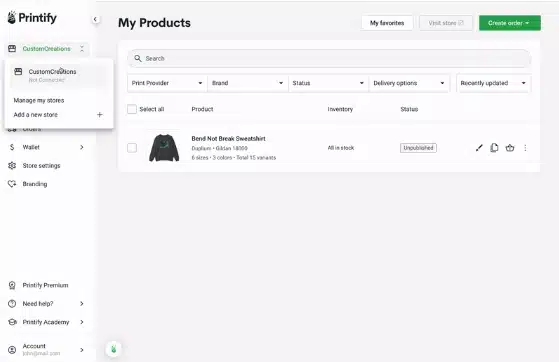
- Access Shopify Admin: Log into your Shopify store’s admin panel.
- Find Printify App: Go to the Shopify App Store and search for “Printify”.
- Install App: Click on the Printify app and press ‘Add app’. Follow the prompts to install it on your Shopify store.
3. Connect Printify to Your Shopify Store
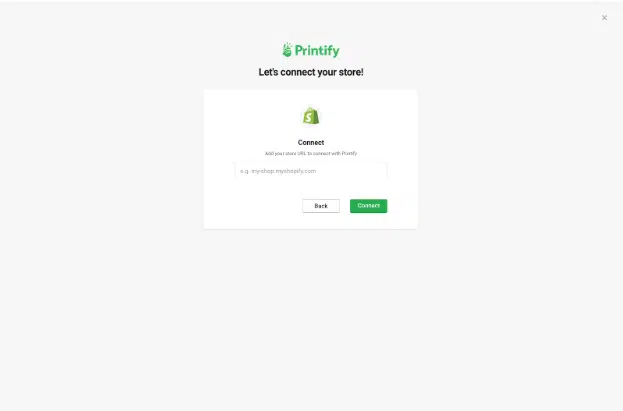
- Open Printify on Shopify: Once installed, open the Printify app within your Shopify admin.
- Connect Accounts: If prompted, log in to your Printify account to connect it with Shopify.
4. Create and Publish Products

- Design Products in Printify: In Printify, select ‘Create Product’ and choose from their catalog of products. Design your product using their design tools.
- Set Product Details: After designing, set the product title, description, and pricing in Printify.
- Publish to Shopify: Once you’re satisfied, publish the product to your Shopify store directly from Printify.
5. Set Up Shipping

- Configure Printify Shipping: In Printify, go to ‘Manage My Stores’ and find Shipping settings. Configure the shipping rates and options.
- Match Shopify Shipping Settings: Ensure that your Shopify store’s shipping settings are consistent with Printify’s settings for a smooth checkout experience for your customers.
6. Test the Integration
- Place a Test Order: To ensure everything works seamlessly, place a test order for one of your Printify products through your Shopify store.
- Check Order Sync: Verify that the order appears correctly in both your Shopify and Printify dashboards.
7. Finalize and Promote
- Check Inventory Sync: Ensure that inventory levels are syncing properly between Printify and Shopify.
- Promote Your Store: Start marketing your new products through your preferred channels.
8. Monitor and Manage Orders
- Fulfillment Process: Printify will automatically process orders made on your Shopify store, print the products, and ship them to your customers.
- Order Tracking: Regularly check the status of orders and provide tracking information to customers as available.
Wrapping-up
By integrating Printify with your Shopify store, you can unlock a seamless and efficient way to offer custom products to your customers. Remember, the journey doesn’t end here. It’s about continually refining your offerings, understanding your customers’ preferences, and staying ahead in the competitive world of online retail.
However, if you find yourself needing a bit more guidance, or if you want to take your store to the next level with professional touches, hire Shopify developers. With their in-depth knowledge and experience, they can tailor your store to meet your unique business needs, ensuring everything runs smoothly.

Akshima Jain
Content Production Manager